

Aplica
Aplica is an AI-Assisted job application platform where users can create an account, setup their profile, view jobs and apply for them using generated tailored resumes and cover letters.
Visit website (opens in a new tab)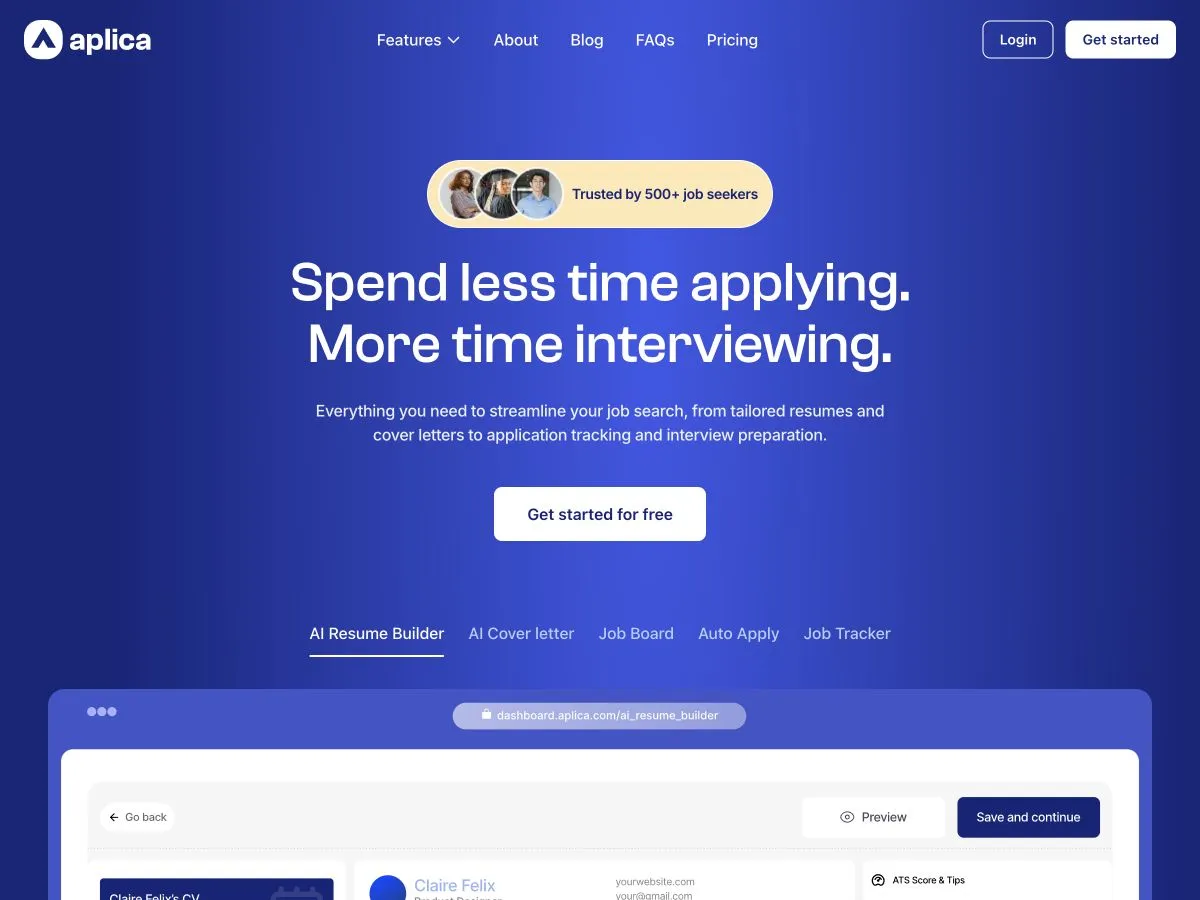
Overview
Applying for jobs is the same work over and over. You adjust your resume for every role, write another cover letter, answer the same questions, and try to remember where you’ve already applied.
Aplica is built to take most of that away. Job seekers fill in their profile once. From there they can:
- generate a resume from their profile, or one tailored to a specific job posting
- check it against ATS rules and apply the suggested fixes
- generate cover letters
- browse recommended jobs
- make a quick application using a saved package of resume, cover letter and common answers
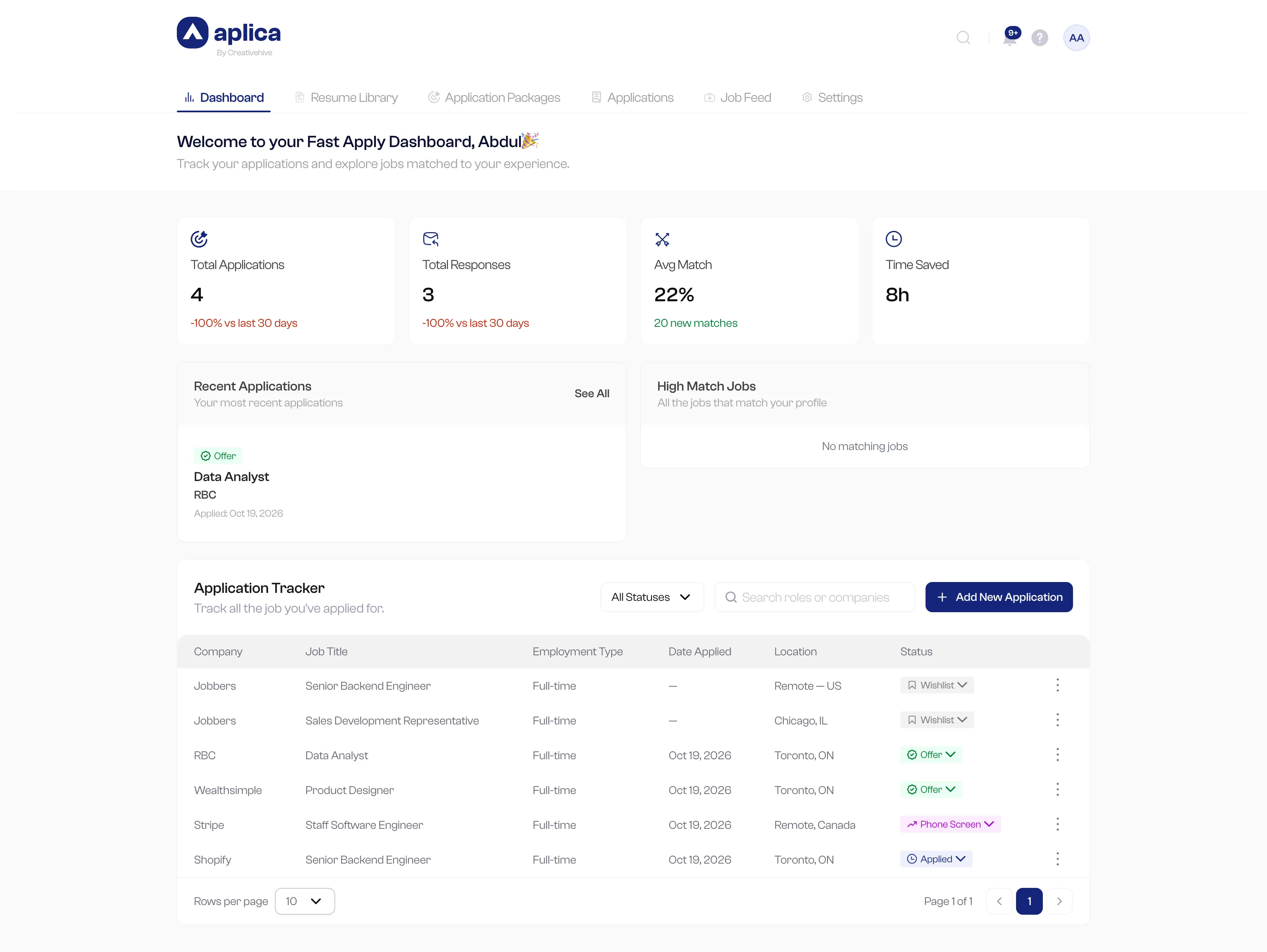
The internal team uses a separate back office to manage applicants, moderate job listings, follow applications and control admin access.
The AI runs on the backend. My part was everything people actually see and use.
My role
I was the only frontend engineer on Aplica and owned the frontend from the first commit. I set up the monorepo and built both apps, the web app for applicants and the admin back office, along with the shared UI library and auth package they run on.
I worked with the designers on how each flow should behave, including the states a mockup usually leaves out: loading, errors, empty screens, and what happens while an application is still being submitted. With the backend engineer, I worked against an API that was still being built for most of the project. I often built screens against mock data first and connected them as endpoints were ready.
Highlights
Streaming AI generation
Generating a resume or cover letter takes a while, so the API streams progress as it goes. The browser’s built-in tool for reading streams (EventSource) only makes GET requests and can’t send an auth header. These endpoints are POST requests, and one takes a file upload. So I read the stream manually: I collect partial chunks, split out complete events, and check each one before the UI uses it.
Three rules mattered most:
- A stream that closes without a “complete” event counts as a failure, never a success.
- Closing the dialog cancels the request, so nothing keeps running in the background.
- If generation fails because the profile is too thin, the dialog says so and links to the profile instead of showing a generic error.
A resume editor that updates as you type
The backend renders the final PDF in eight templates. Fetching a new PDF on every keystroke would be slow, so the editor shows an HTML version of the selected template that updates as you type. The real PDF is used where it has to be exact: the template picker, preview mode and downloads.
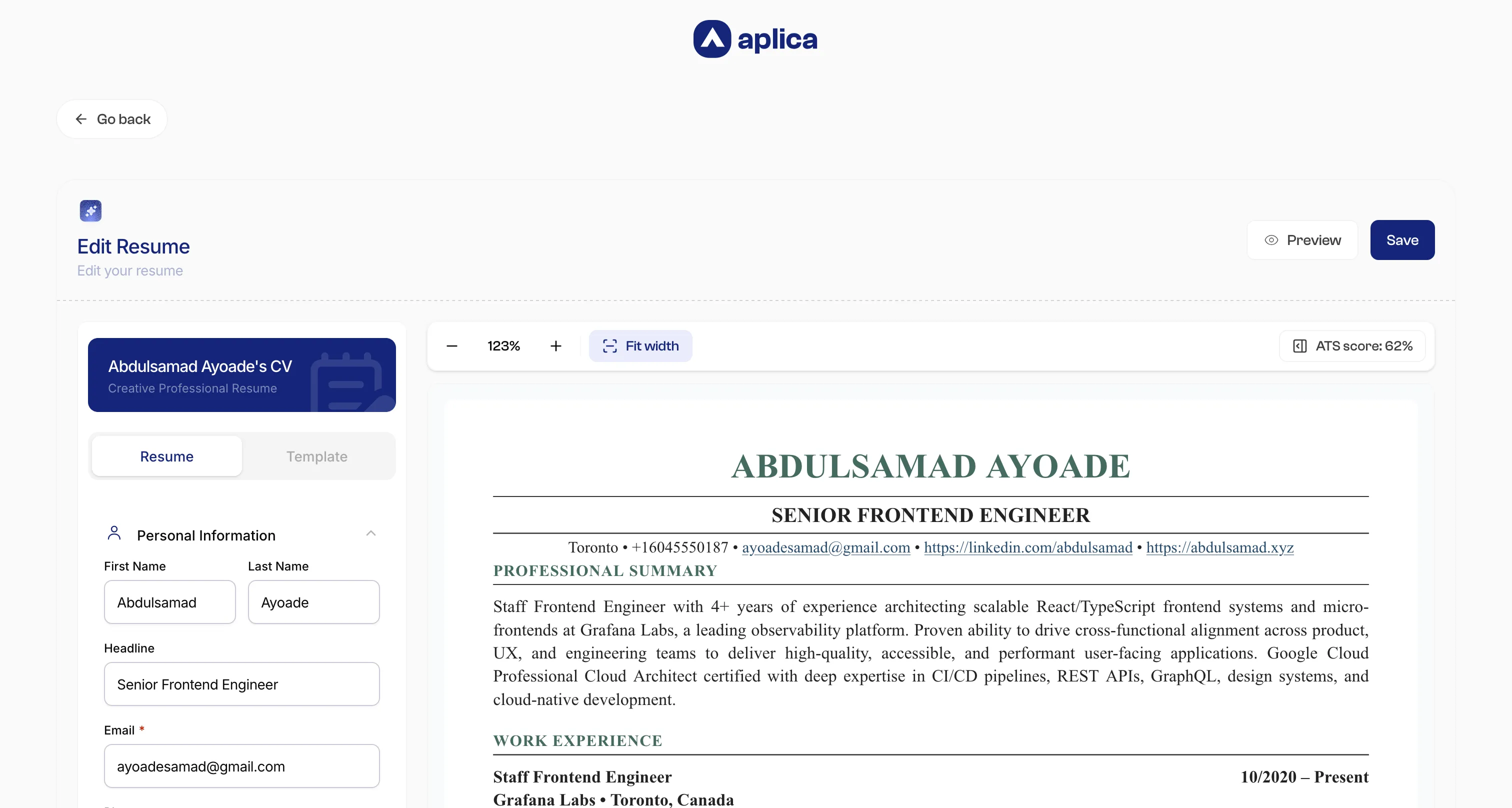
Each template is a config object (header style, section order, sidebar, how experience and skills are laid out) plus a few overrides in one shared stylesheet. All eight render through the same component, so changing a template means editing config, not writing a new page. If the backend sends a template the frontend doesn’t know yet, the editor shows the real PDF rather than guessing with the wrong design.
You save one section at a time. A Save button only appears on sections you’ve changed. When the server sends its version back, it’s only applied if you haven’t kept editing that section. The ATS score runs when the resume opens and again a few seconds after each save, with a “Checking ATS…” label so the number never changes without warning.
Quick Apply, where the result comes later
With Quick Apply, applicants pick an application package (a resume, an optional cover letter and answers to common questions) and Aplica submits it for them. The submission happens later. A background worker opens the employer’s application site and fills in the form. It can succeed, fail, or stop at a CAPTCHA or login page and need a person to finish.
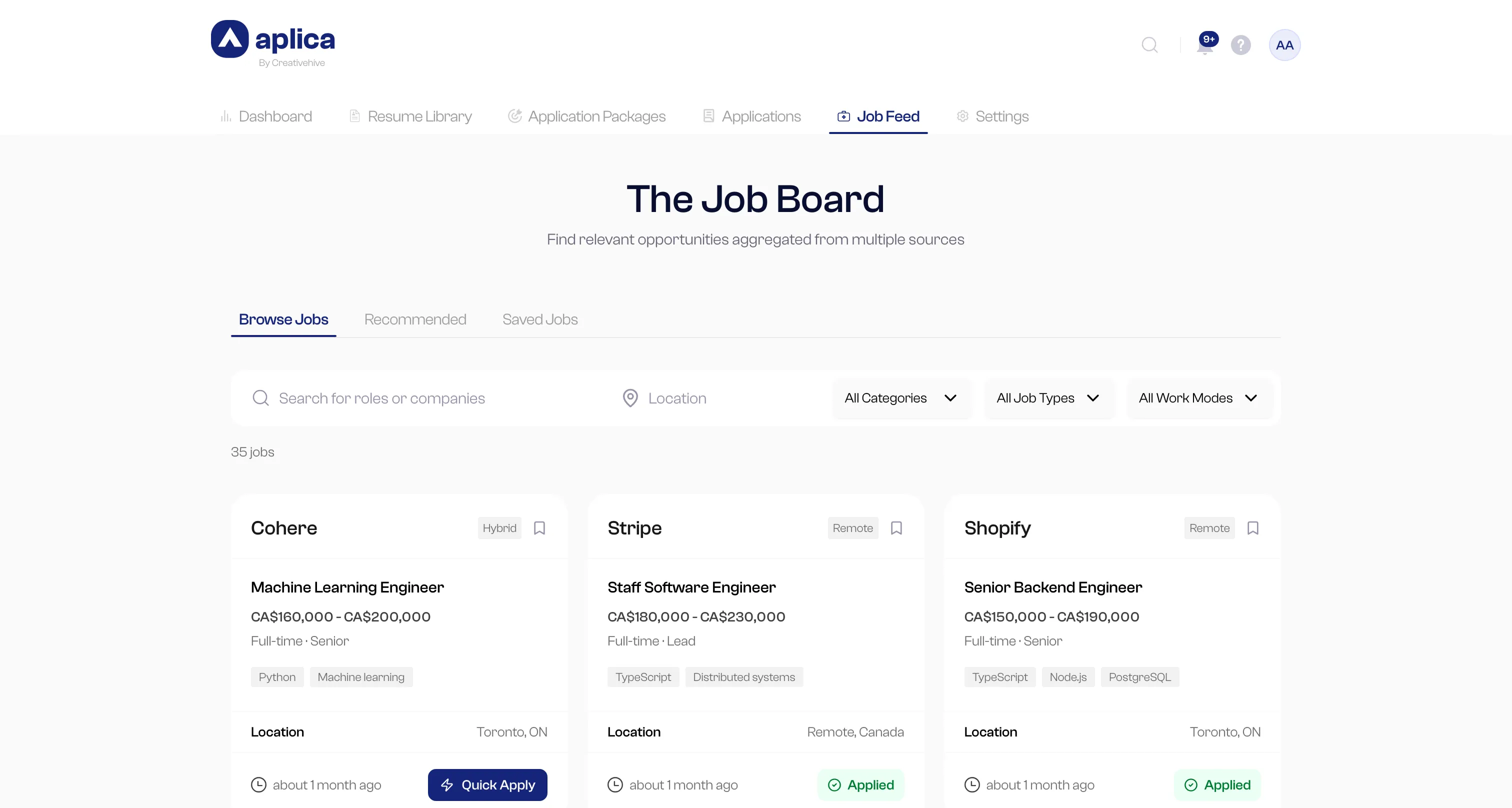
An application can’t be taken back, so I built the UI around two rules: never let someone think they applied when they didn’t, and never let them apply twice.
Starting. Picking a package is the only step. If you’ve already applied to the job, the dialog shows that application instead of the picker. The API has no “already applied” field, so the frontend builds that lookup from your existing applications. If the request is turned down, the reason decides what you see:
- A resume with no uploaded file gets an explanation and a link to your packages.
- A duplicate switches the dialog to the application you already have.
- If the submission can’t be queued, you get a retry button.
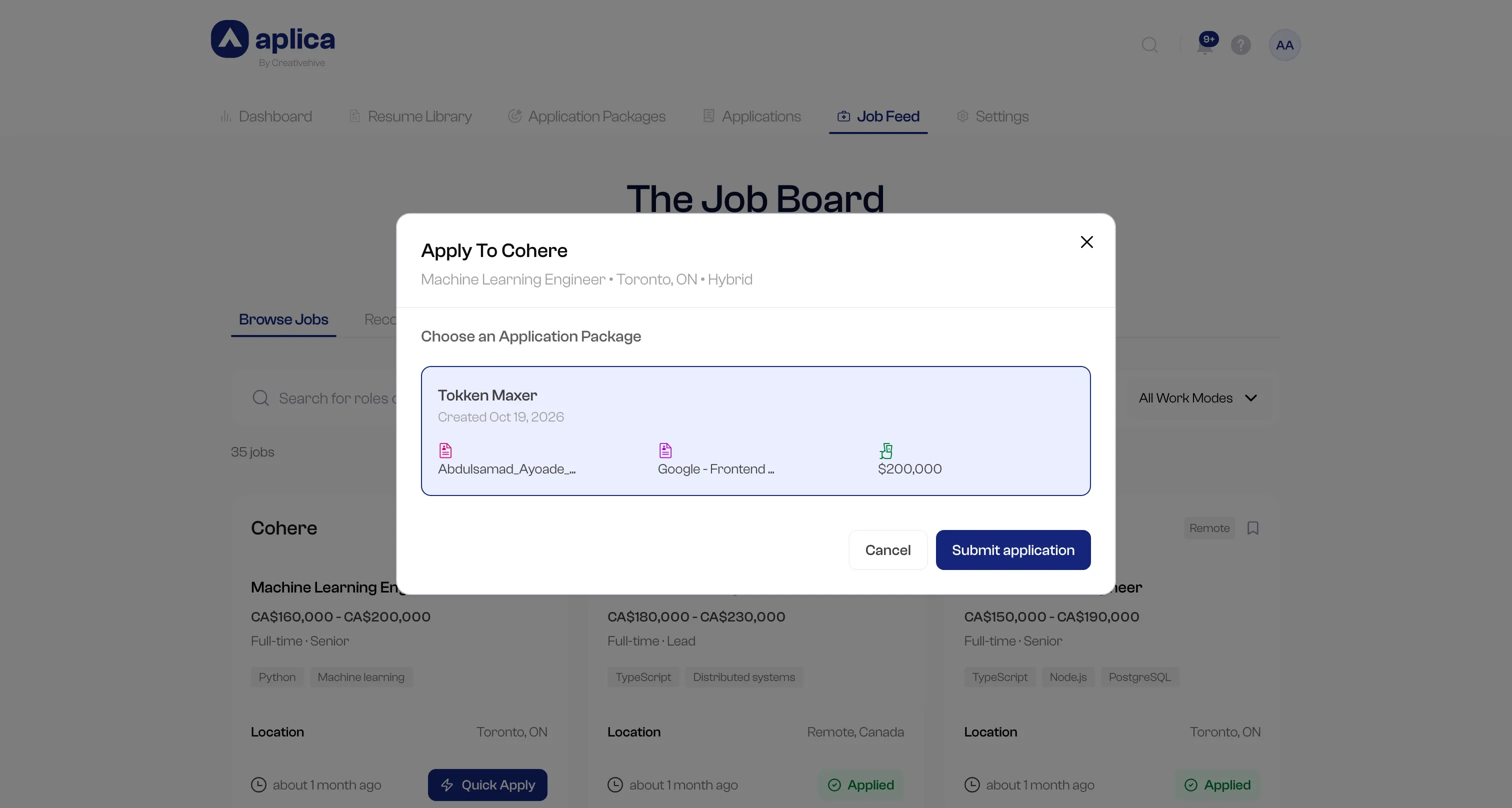
While it runs. The application shows as “Submitting…” and the UI checks its status every five seconds. The job page, the applications list and the dashboard all run that check, so whichever page you’re on shows the current status. It stops as soon as nothing is in progress. You also can’t change an application’s status by hand while it’s being submitted.
When it finishes. Each outcome has its own message. If the submission failed or needs manual review, the application moves back to your wishlist with a link to the job posting, so you can apply yourself. If the worker had already started submitting before it stopped, the message warns that the employer may already have your application, so you don’t send a second one.
The polling rule and the error handling both have unit tests.
The back office
The back office is where the Aplica team manages applicants, moderates job listings, follows applications through to hire, and decides who gets admin access. Almost every action changes something for a real person, so I built it around two things: making every change traceable, and keeping admins’ context while they work.
Every change leaves a trail. Correcting an applicant’s profile requires a reason, and the change shows up in an edit history. Suspending or reactivating an account can record a reason in the account history. Blocking a job listing hides it from applicants and can include a note on why. Destructive actions, like revoking an admin or deleting a job, go through a confirmation that stays open until the request finishes, so nobody closes it and wonders whether it worked.
Access is invite-only and ranked. New admins get an invite with a temporary password and have to replace it the first time they log in. Roles are ranked staff, admin, super admin. You can only manage admins at or below your own rank and never your own account, and the role picker only offers roles you’re allowed to give.
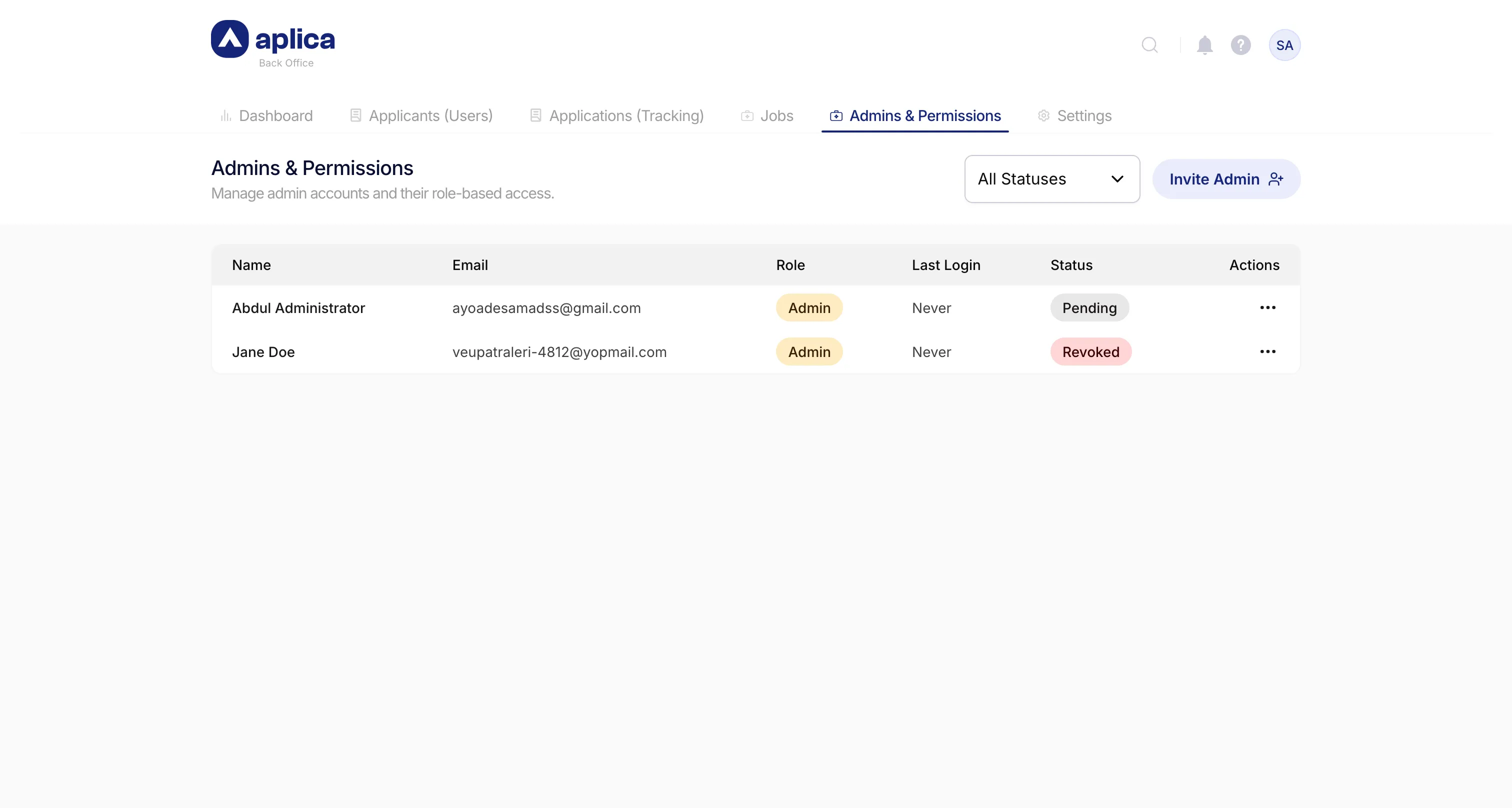
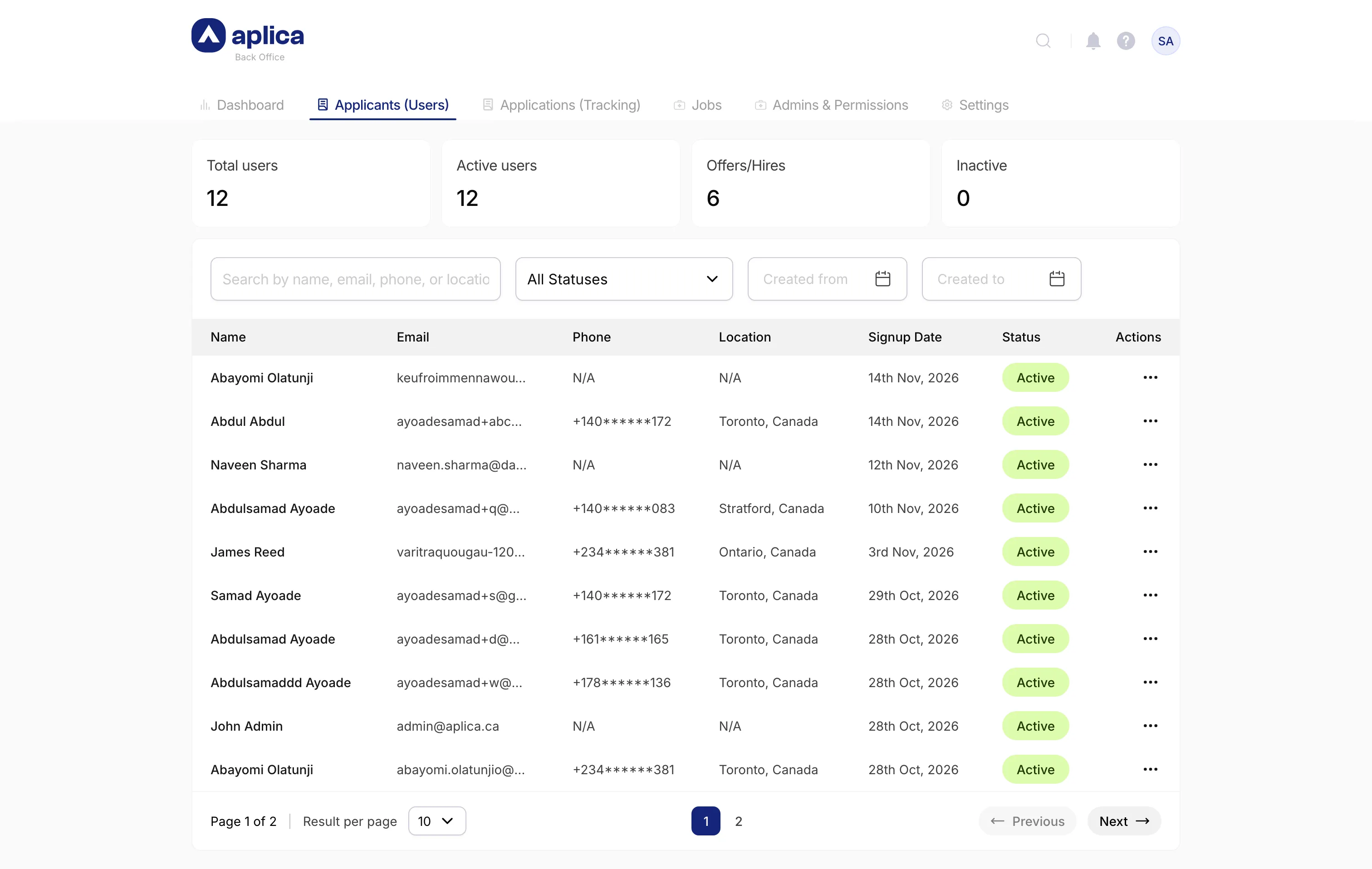
Context lives in the URL. Every filter, search and page number in the applicant, application and job tables is kept in the URL, so a filtered view survives a refresh and can be shared with a teammate. The applicant profile keeps its open tab in the URL too, so a link lands on the right section. Applications and the dashboard summary can be exported to CSV.
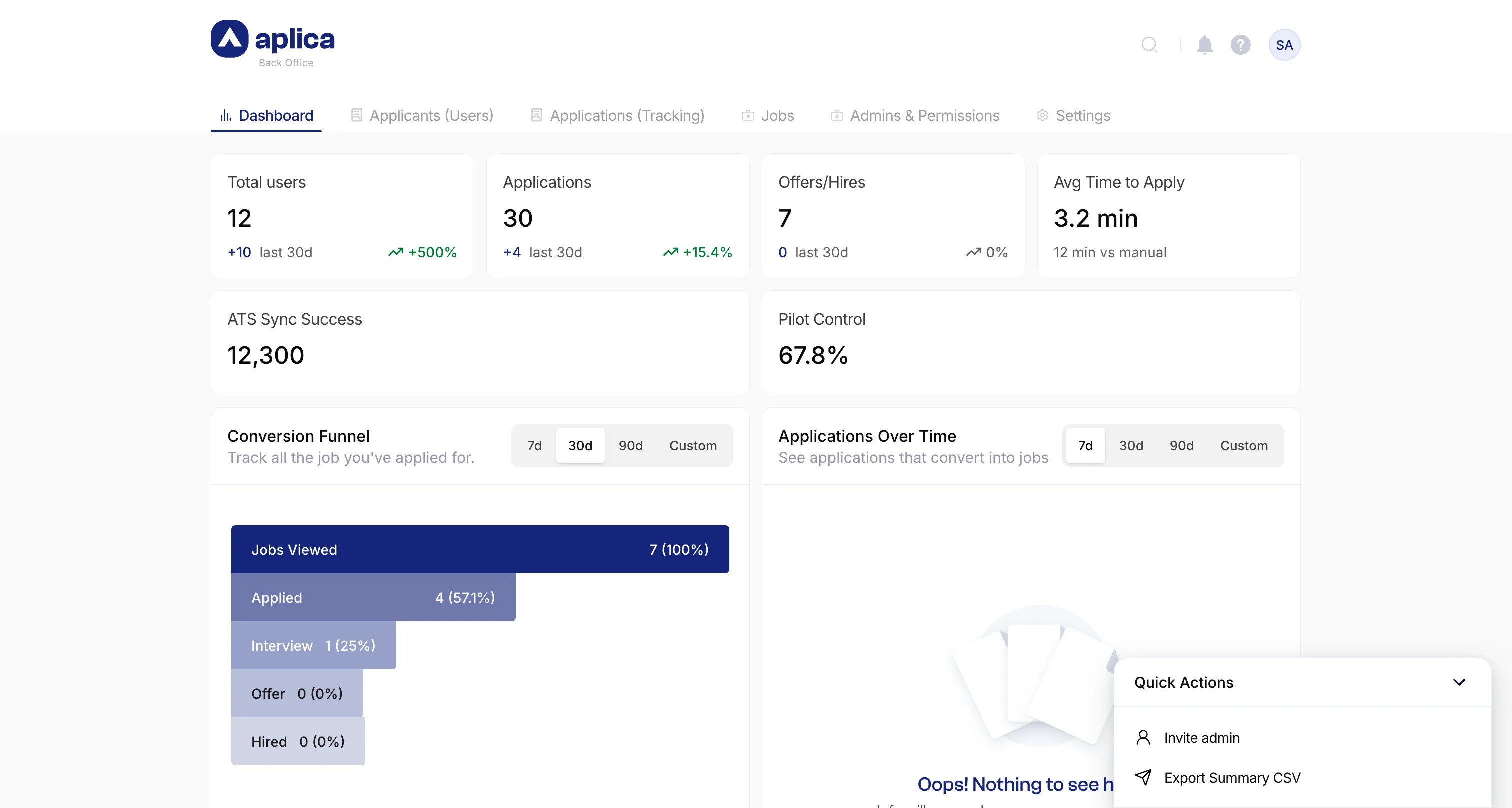
The dashboard shows the whole funnel. A conversion funnel follows applicants from viewing a job to getting hired. Next to it, a chart shows applications, interviews and offers over the last 7, 30 or 90 days, or a custom range. The chart comes with a text summary and a data table for screen reader users.
Smaller things that mattered
Expiring file links. Resumes and cover letters sit in cloud storage behind links that expire after 15 minutes. The app treats a link as stale after 10, so previews never point at a dead file. When the storage refuses a direct browser request, a small server route fetches the file instead. It only accepts Aplica’s own storage, so it can’t be used to fetch anything else.
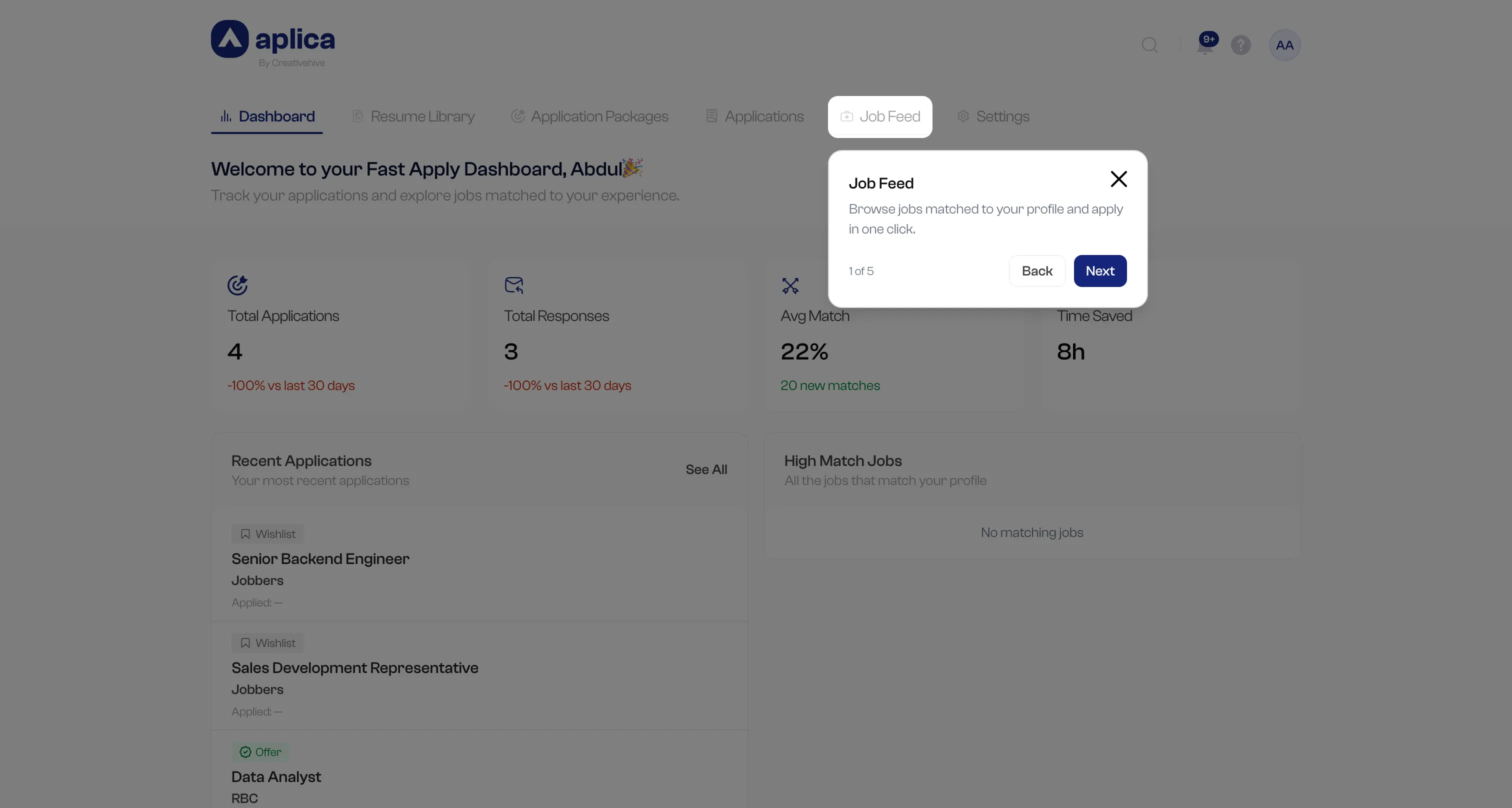
Product tour. A spotlight highlights each part of the app and follows it if the layout shifts. It supports keyboard focus, Escape to close and reduced motion. If a step’s target isn’t on screen, it falls back to a centered dialog.
Onboarding. Seven steps, with the current step in the URL and progress saved per user. The profile forms are built once and reused in Settings.
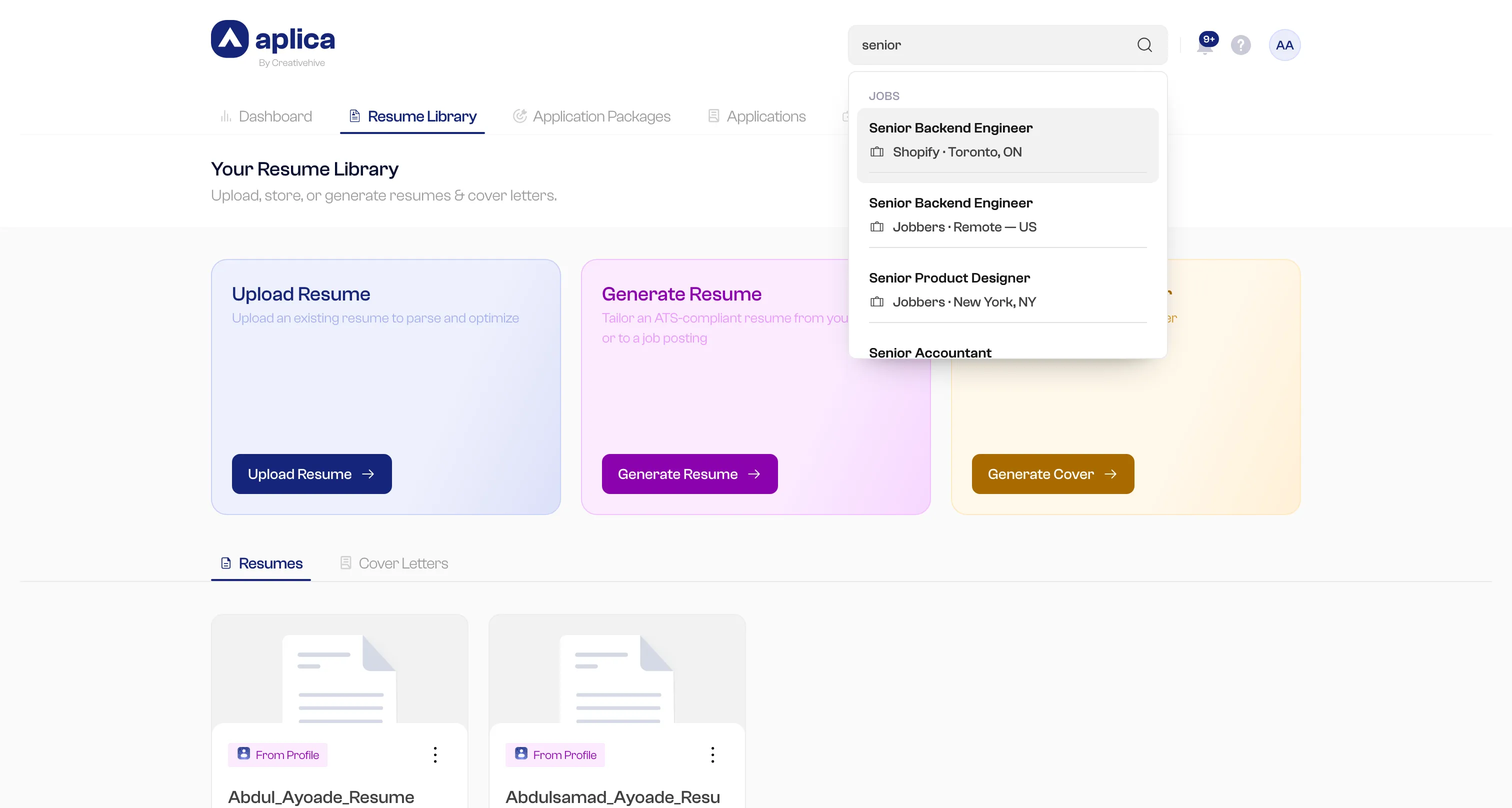
Accessibility. Skip links, a global search you can use entirely from the keyboard, screen reader announcements for loading and status changes, reduced-motion support, and accessibility linting across the codebase.
How it’s put together
Both apps live in one monorepo and share a UI library and the auth package. Each feature is a self-contained module with its own API calls, data fetching, form validation and mapping functions. API responses go through those mappers before they reach components, so components never depend directly on the API’s shape.
TypeScript runs in strict mode. I wrote unit tests around the logic most likely to break quietly: token refresh, the Google sign-in checks, Quick Apply errors and status polling, the output of every resume template, and resume date formatting. Lint and a full build run before every push.
Where it stands
Currently Aplica is in beta.
What I’d do differently
Agree on error codes with the backend early. The generation stream doesn’t send error codes, so spotting an incomplete profile means matching the wording of the error message. It works, but it breaks if someone rewords that message.
Ask for small API fields sooner. The API doesn’t mark jobs as saved or already applied, so the frontend builds those lookups by fetching lists. That’s fine at the current size, but one field on each job would be simpler.